
Key Features
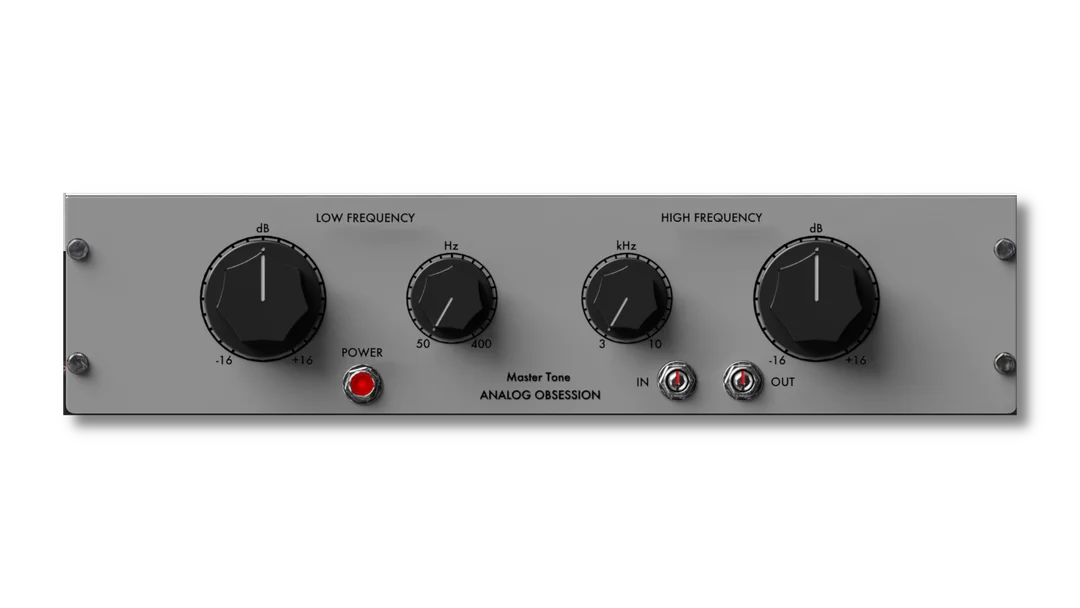
- Shape low frequencies with a Baxandall band spanning 50–400 Hz
- Adjust the high-frequency balance across a 3–10 kHz range
- Boost or cut either band by up to 16 dB for broad tonal moves
- Drive the output transformer using the gain-compensated input control
- Set the final level independently with a clean output control
- Resize the interface from 50% to 200% and bypass processing with the power control
Description
MasterTone by Analog Obsession is a transformer-balanced Baxandall EQ plugin for broad low- and high-frequency tone shaping. Its two bands and input drive bring a simple analog-style approach to individual tracks, buses, and full mixes.
The low band selects frequencies from 50 Hz to 400 Hz, while the high band covers 3 kHz to 10 kHz; each provides up to 16 dB of boost or cut. These wide tonal moves are useful for changing the overall balance, but a parametric EQ is a better fit for isolating narrow resonances.
The gain-compensated input control sits after the input transformer, and turning it up drives the output transformer harder. A separate clean output control adjusts the final level, letting you balance the result after changing the input or EQ settings.
The interface can be resized from 50% to 200% using its corner handle, and the power control bypasses processing. To keep a preferred interface size for new instances, the developer recommends resizing before changing the controls and saving that state as the DAW default preset.
Version 1.1 addresses a volume-drop and channel-mute issue. MasterTone comes in VST3, AU and AAX formats for supported Mac hosts and VST3 and AAX formats for Windows; the developer's page provides the current installers.
Frequently Asked Questions
Can MasterTone remove a narrow resonance?
Its two Baxandall bands are intended for broad changes to bass and treble. Use a parametric EQ when you need a narrow, targeted cut.
How do the input and output controls differ?
The gain-compensated input control can drive the output transformer harder. The output control sets the final level cleanly.
How can I keep my preferred interface size?
Resize the first instance before adjusting its knobs, then save that state as your DAW’s default preset. New instances can then open at that size.


